
How to Create Recognition Folders for Photo Organization

Recognition folders are best created by combining facial recognition technology with consistent naming conventions, either through native OS smart albums or local AI tools that physically sort files into person-specific folders. The core process involves letting the software detect and cluster faces, then manually naming those clusters so the system can match new images automatically over time. Whether you use Apple Photos on macOS, the legacy Windows Photos app, or a dedicated local AI application, the workflow follows the same fundamental pattern: detect, cluster, name, and maintain.
- Native OS tools (Apple Photos, Windows Photos Legacy) create virtual groupings called smart albums that do not move physical files.
- Local AI tools like Face Sort Studio physically copy images into person-named folders, giving you true file-level organization.
- Privacy-first users benefit most from local processing apps, which keep all facial data on your machine without any cloud upload.
- Manual naming is the single most important step: the system cannot assign identities on its own without your input.
- Folder naming conventions (using a person’s full name or a consistent label) determine how well the system scales as your photo library grows.
Table of Contents
- How to create recognition folders step by step
- How facial recognition actually organizes your photos
- Best practices for managing recognition folders over time
- Wehonoru makes physical recognition presentation effortless
- FAQ
- Key Takeaways
How to create recognition folders step by step
The process works across platforms, though the exact interface varies. These steps apply broadly to Apple Photos, the Windows Photos Legacy app, and local AI tools.
-
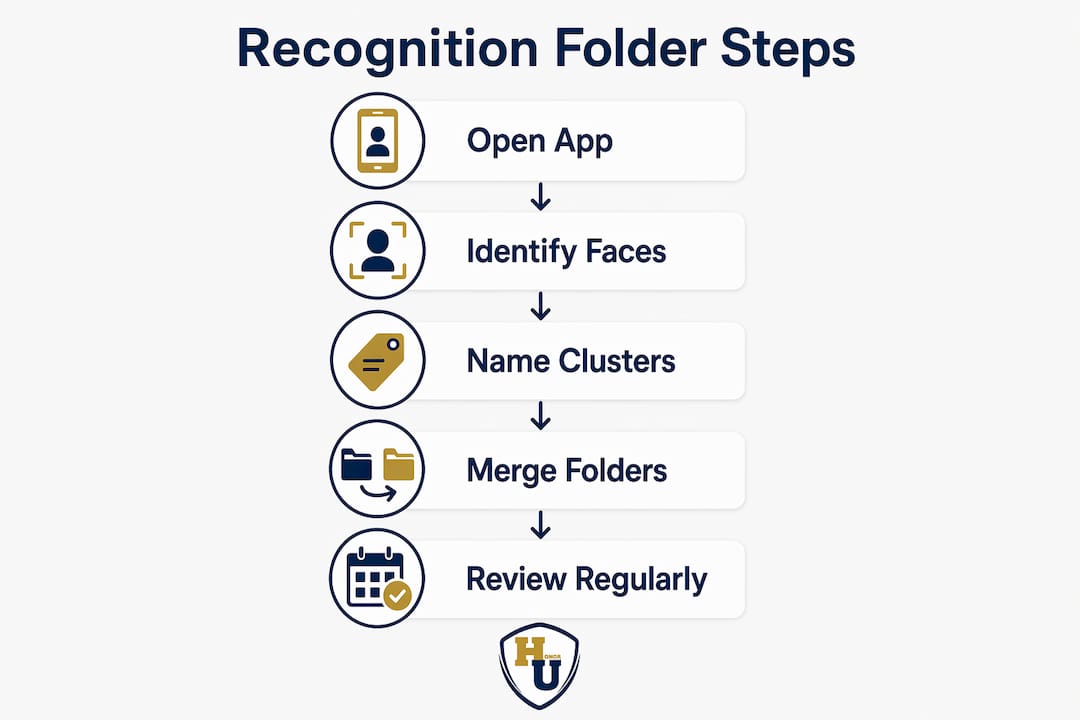
Create a new folder or album. In Apple Photos, hold the pointer over Albums in the sidebar, click the plus icon, and choose New Folder. In Windows File Explorer, open the target directory and press Ctrl + Shift + N to create a new folder instantly.
-
Enable facial recognition scanning. In Apple Photos, the app scans your library automatically when you first open it. In the Windows Photos Legacy app, go to Settings, find the Viewing and Editing section, and toggle the People setting to On. The app then begins grouping photos by faces across your collection.
-
Name the detected face clusters. Once clusters appear in the People album or People tab, click the Name button beneath each group and type the person’s name. All photos in that cluster are assigned the name immediately. This step teaches the system who each face belongs to.
-
Match untagged images to existing folders. Review the “New Faces” or unidentified clusters regularly. Confirm correct matches and reject false positives, such as logos or pets that the system may have grouped with a person.
-
Use metadata tagging for saved searches. Tag image files with a person’s name in their file properties. Windows 11 lets you save a search by that tag, creating a dynamic smart folder that updates automatically as new tagged images are added.
-
Edit, merge, or rename folders as needed. If the system creates two separate clusters for the same person, select both groups in Apple Photos, Control-click one, and choose Merge. Rename folders any time identities become clearer or naming conventions change.
-
For physical file sorting, use a local AI tool. Apps like Face Sort Studio let you upload reference photos of specific people, point the tool at a gallery folder, and automatically copy matched images into person-specific subfolders. The output structure includes a
matched/folder, aby_target/folder with one subfolder per person, and anunmatched/folder for images with no recognized faces.
Pro Tip: After the initial setup, run a review session every few weeks. Confirming new face matches early prevents misclassifications from compounding across hundreds of images.
How facial recognition actually organizes your photos
Understanding what the technology does under the hood helps you set realistic expectations and get better results faster.
Facial recognition does not identify people the way a human does. Instead, it groups photos by mathematical similarity, creating clusters of faces that share similar geometric features. The system cannot assign a name to a face until you provide one. That distinction matters practically: your first pass through a new library will show unnamed clusters, not a ready-made folder labeled “Sarah.”
Smart albums and the People album in Apple Photos are virtual views. They display grouped images without moving any files from their original locations. If you need actual folders on disk with photos sorted inside them, you need a third-party local AI tool. Native OS solutions prioritize library integrity over physical file reorganization.
macOS 15 Sequoia introduced the ability to create groups of recognized people, where Photos automatically suggests groupings based on who frequently appears together. You can also build custom groups by selecting specific people. Windows 11’s current Photos app has removed the People tab entirely; the facial grouping feature lives only in the legacy version.
False positives are common in early use. The system may cluster a cartoon character, a pet, or a partially obscured face alongside a real person. Reviewing and rejecting these mismatches trains the algorithm and improves accuracy over time. For document folders in recognition practices, consistent maintenance is what separates a well-organized library from a chaotic one.
Best practices for managing recognition folders over time
Good setup gets you started. Consistent maintenance keeps the system accurate and the folders genuinely useful.
- Name every cluster before moving on. Unnamed clusters do not improve on their own. The sooner you assign a name, the sooner the system starts matching new images to the right folder automatically.
- Use a consistent naming convention. Choose one format (first and last name, or a role-based label like “Team Lead 2025”) and apply it across every folder. Mixing formats creates confusion when searching or merging later.
- Back up your original photos before any bulk sort. Local AI tools copy rather than move files by default, but confirming your backup before a large processing run protects against any unexpected data loss.
- Prefer local processing tools if privacy matters. Apps that keep all facial analysis on your device avoid sending biometric data to external servers. This is especially relevant for organizations managing photos of minors, patients, or employees.
- Use progress dashboards when available. Tools like Face Sort Studio include a dashboard that tracks how many images have been processed, matched, and sorted, giving you a clear picture of completion status without manually counting folders.
- Avoid expecting full automation. Even the best facial recognition systems require periodic user review. Manual confirmation of new faces remains the most reliable way to maintain accuracy, particularly as your library grows.
- Leverage saved searches for dynamic updates. When physical file moves are not possible, tagging images with metadata and saving a search by person name creates a folder that refreshes automatically whenever new tagged images are added.
For broader guidance on organizing recognition-related documents, Wehonoru’s resource on organizing document folders covers practical workflows applicable to both digital and physical recognition systems.
Wehonoru makes physical recognition presentation effortless
Digital recognition folders handle the organization side of honoring achievement. The physical presentation of that achievement is a separate challenge, and one where Wehonoru delivers a clear advantage over standard print suppliers.

Wehonoru produces custom diploma covers and certificate holders with metallic foil printing, ships orders the next business day, and requires no minimum order quantity. Whether you need one cover for a single graduate or a hundred for a corporate recognition ceremony, the price and process stay the same. No setup fees, no bulk requirements, and free shipping on orders over $30. For schools, HR departments, and organizations that manage recognition programs alongside their digital folder systems, Wehonoru’s tent-style document covers offer a premium physical complement to every digital record. Browse the full selection at WeHonorU.com and place your order today.
FAQ
How do you create a recognition folder on a Mac?
Open Apple Photos, click People in the sidebar, and click the Name button beneath an identified face cluster to assign a name. Photos automatically groups all matching images into that named album, creating a virtual recognition folder that updates as new photos are imported.

What is the difference between a smart album and a physical recognition folder?
A smart album is a virtual view that groups images by criteria without moving any files from their original locations. A physical recognition folder actually contains copies of sorted image files, which requires a local AI tool rather than a native OS app.
How do you improve facial recognition accuracy in photo folders?
Regularly review and confirm matches in the “New Faces” section of your photo app. Naming clusters promptly and rejecting false positives trains the system and reduces misclassification over time.
Can you create recognition folders in Windows 11?
The current Windows 11 Photos app does not include a People tab. Facial grouping is available only in the Windows Photos Legacy app, where you enable it under Settings. For physical file sorting on Windows, a local AI tool is required.
How do you merge two recognition folders for the same person?
In Apple Photos, select both face clusters in the People album, Control-click one, and choose Merge. This consolidates all images under a single named folder and improves future recognition accuracy for that person.
Key Takeaways
Recognition folders work best when users combine automated face clustering with consistent manual naming and periodic maintenance reviews.
| Point | Details |
|---|---|
| Smart albums vs. physical folders | Native OS tools create virtual groupings; physical file sorting requires a local AI tool. |
| Manual naming is required | Facial recognition clusters faces by similarity but cannot assign identities without user input. |
| Consistent naming conventions | Using one naming format across all folders prevents confusion and supports accurate searching. |
| Privacy and local processing | Local AI tools keep all facial data on your device, avoiding cloud-based data exposure. |
| Wehonoru for physical recognition | Wehonoru ships custom certificate holders and diploma covers next day, with no minimums or setup fees. |